
Software & System Status: No issues View Status
Resources
eduroam is the Official Campus Wi-Fi Network
Avoid slow speeds and time limits on other networks like MavNET and MavGUEST by making sure all your devices are on our official campus Wi-Fi, eduroam.
Technology for Students
Mavericks, we've got you covered with free software and tech help.
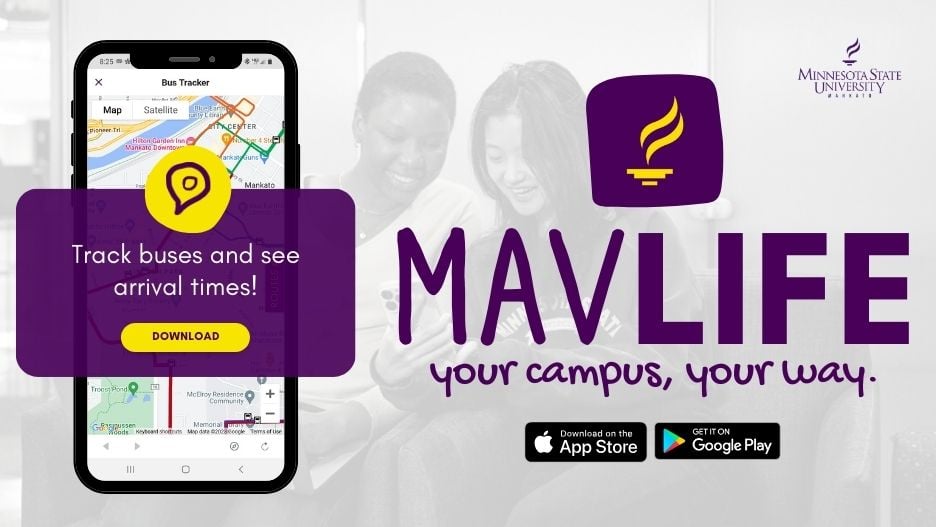
Mav Life: Official University Mobile App
Your campus, your way.
Make friends, discover events, track buses, find resources, and more!
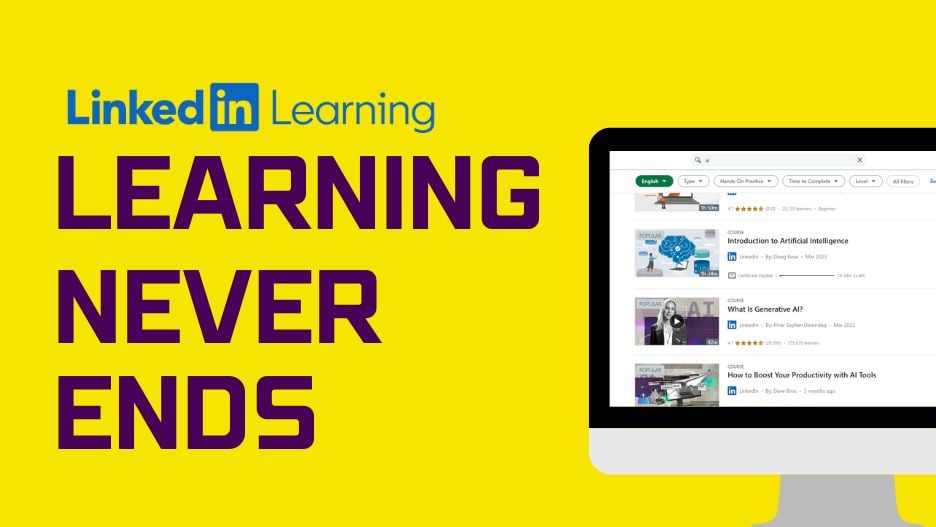
LinkedIn Learning: Thousands of Tutorials, Free!
Develop skills at your own pace about topics like marketing, business, graphic design, education, and more. Available on the web or mobile app!
Our Staff
We provide access to online tools and tech support, maintain the network you rely on, and enhance classroom and online teaching and learning.
Committees
We meet with students, faculty, and staff across campus to understand technology needs and improve our services.
NextGen and Workday
NextGen is a system-wide project to implement new, modern technology in Minnesota State colleges and universities in the coming years. As a part of NextGen, Minnesota State is implementing Workday, a streamlined cloud-based system that will replace ISRS.
Faculty & Staff Tech
Get started with tech across campus as a staff member! From software to tech help, we've got you covered.
Student Tech
Get started with technology at Minnesota State Mankato. In IT Solutions, we are here for you every step of the way. View our Get Started guide and get set-up quick with all technology we offer at the University.
Instructional Design Services
Instructional Design Services, a division of IT Solutions, engages faculty in the use of technology to further student success through effective teaching and learning practices. Let's teach and learn together!
CyberAware
Welcome to CyberAware, the home for cybersecurity information and resources at Minnesota State University, Mankato. IT Solutions Information Security helps protect your personal information and ensure your continued productivity.
Mav Life Mobile App
Mav Life, the University’s official mobile app, is available in the Apple or Google Play store. Download today to connect with friends, customize your profile, view your classes, see campus maps, access the bus tracker, and more.
IT Service & Support
Have a question or need to troubleshoot? Find self-help articles to help get your question answered or contact the IT Solutions Center and we'd be happy to help.
Campus Computer Store
The Campus Computer Store sells: Laptops, Tablets, Accessories, Printers, Software, and more! The profits from our store go back to the University, so support us and you support the University.
Locations, Centers and Labs
IT Solutions operates and helps manage several labs, centers and focus areas across campus to provide and support innovative and advanced teaching and learning.
About IT Solutions
IT Solutions is divided into five major areas. Each team addresses unique solutions to provide the University with reliable information technology systems and innovative solutions.
The Fountain, Employee Home for News, Info and Events
The Fountain is the online location for all University news, events, and information for faculty and staff at Minnesota State University, Mankato.